How to Move Authenticator from an Old Device to a New Device
As the need for digital security increases, the use of Authenticator as a method Two-Factor Authentication (2FA) increasingly used to protect accounts from unauthorized access. Authenticators function by generating dynamic verification codes that can only be accessed via a registered device.
However, in practice, users often face difficulties when they want to switch from an old device to a new one, for example, because the device is broken or replaced.
How to Move Authenticator to a New Device
1. Open a browser on your PC or older device, then access:
https://mysignins.microsoft.com/
(Note: QR codes cannot be displayed through the Microsoft Authenticator app)
2. Log in using the same Microsoft account that was used on the old device (Work/School account or personal Microsoft account).
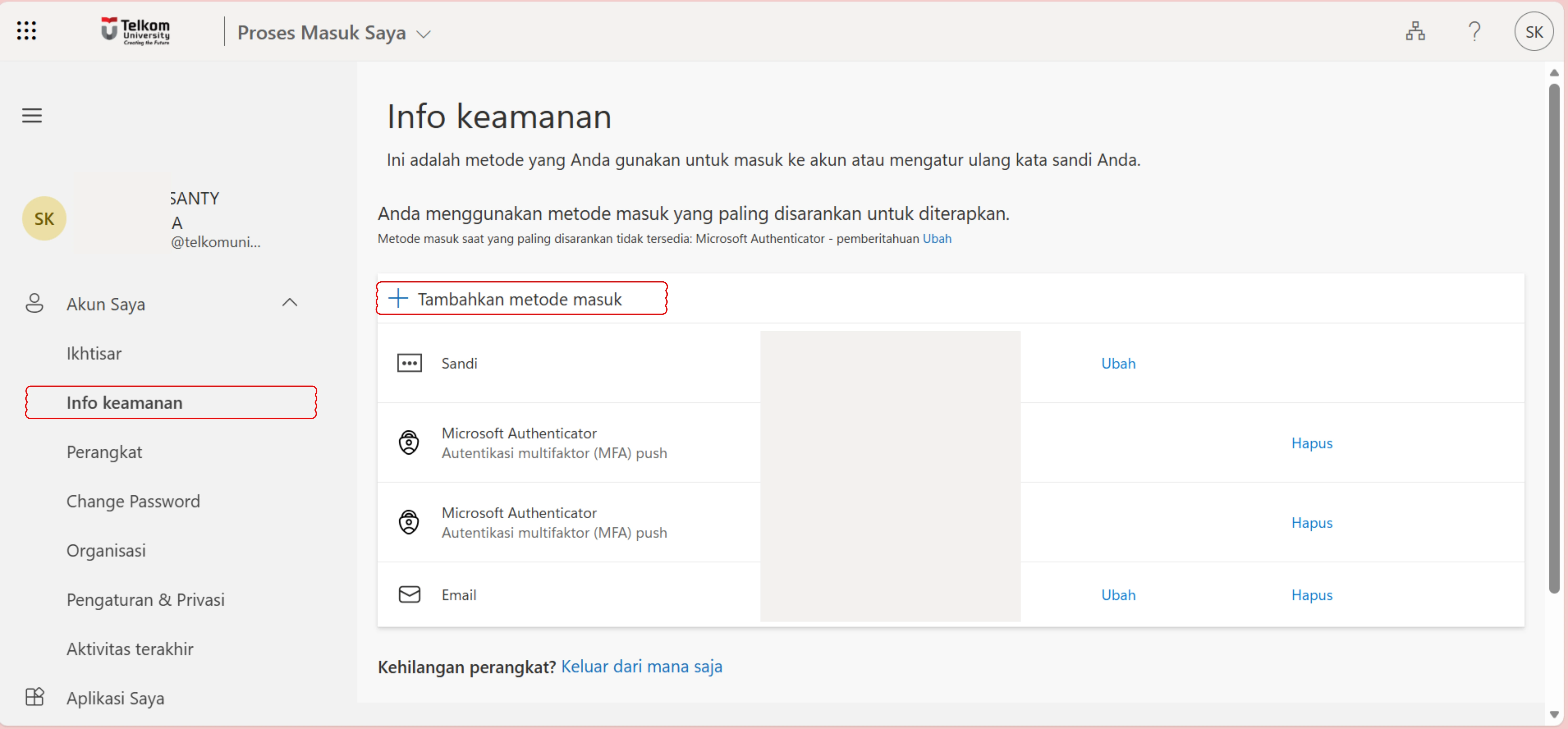
3. Enter the menu Security Info, then choose Add sign-in method
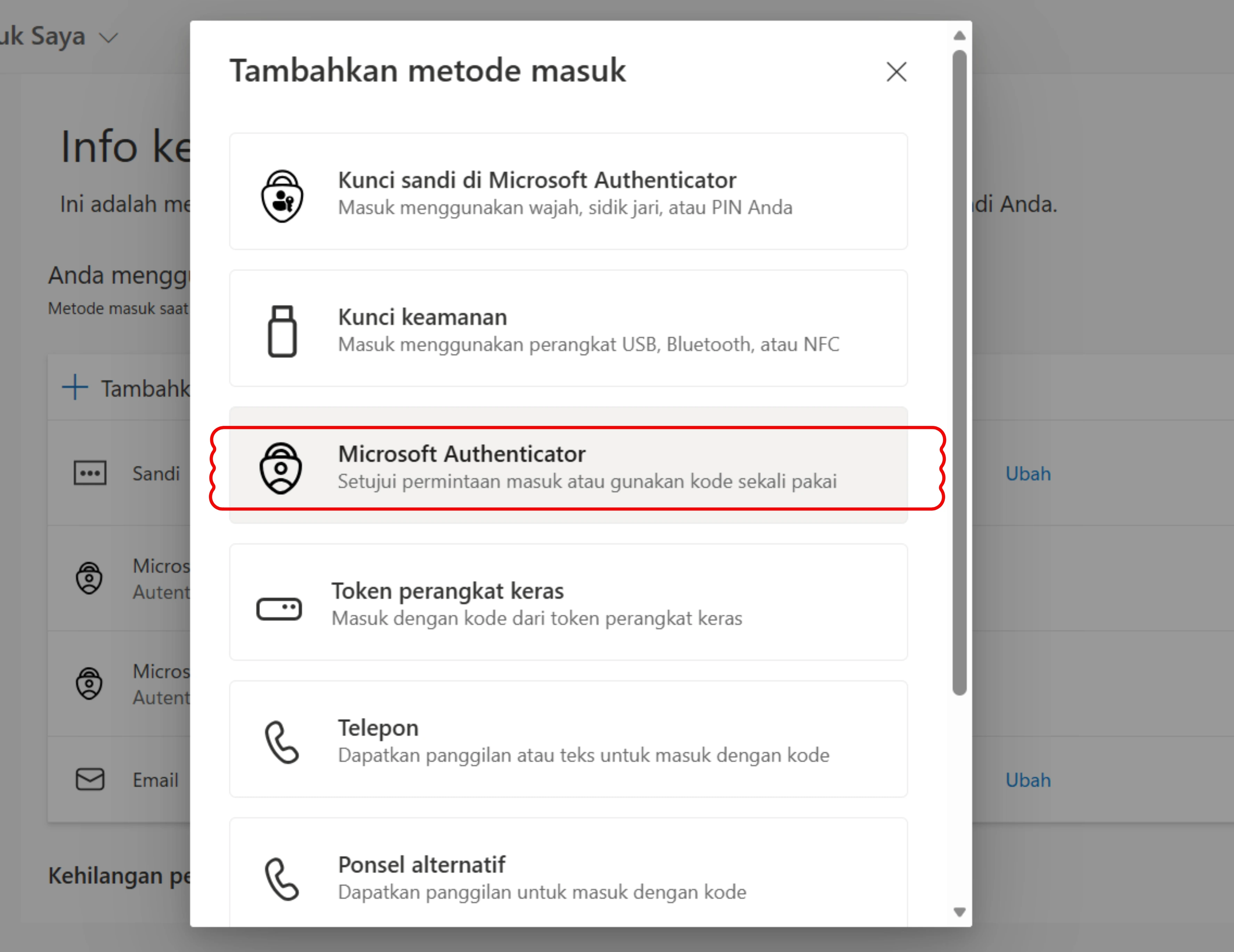
4. Select Microsoft Authenticator
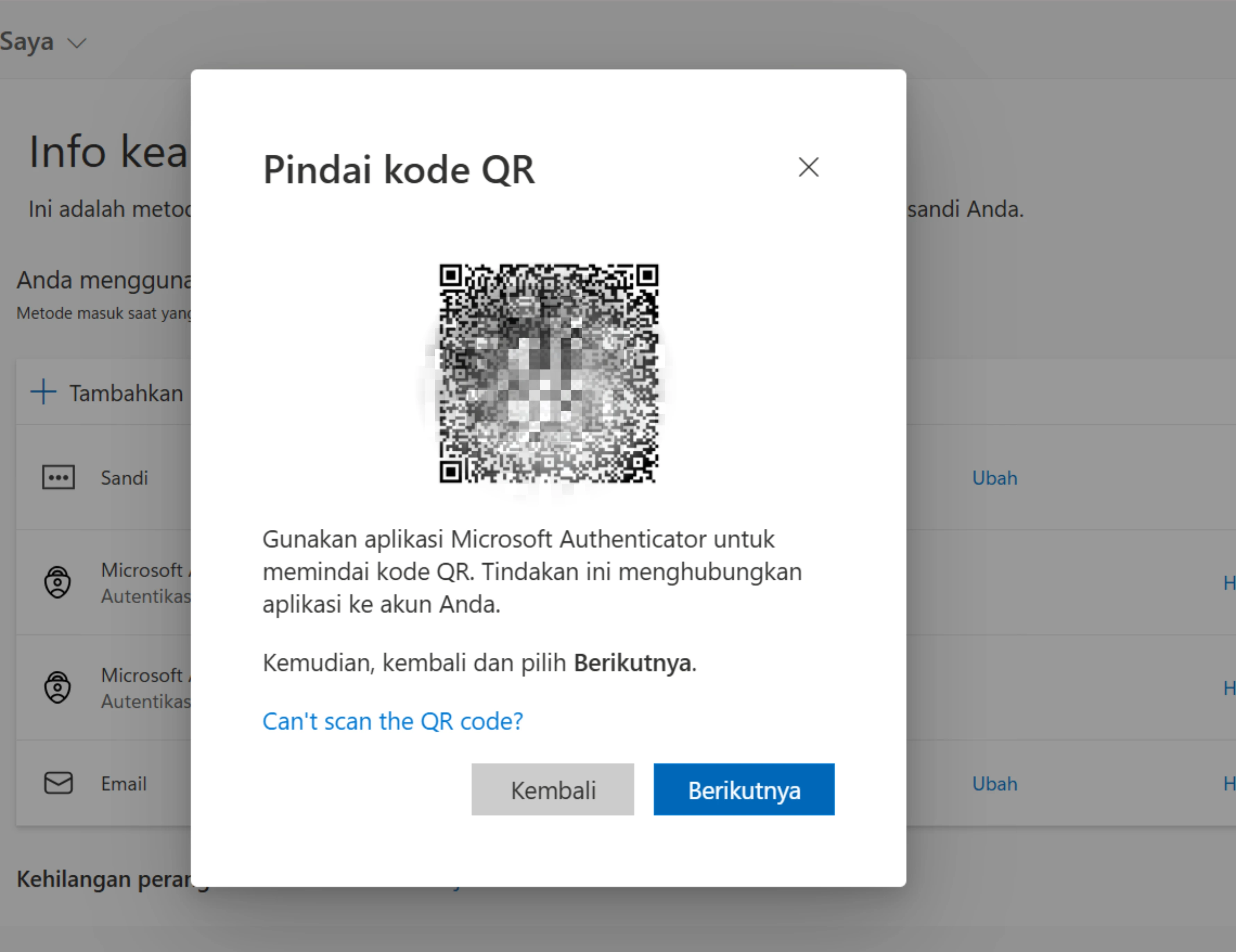
5. then click Next.

6. The QR code will appear and can be scanned immediately using the app Microsoft Authenticator on a new device.
By following these steps, you can easily and securely transfer Authenticator to a new device.