Using TelU-Connect Telkom University Jakarta Campus
Telkom University is introducing a new innovation in campus internet network services by launching TelU-Connect, which will be ready for use by the entire academic community starting March 13, 2023. For students, lecturers, and staff, TelU-Connect is present as a replacement solution for the previous WiFi network, which is Employee@TelkomUniversity Dan Telkom University.
So, what exactly is TelU-Connect? TelU-Connect is a campus WiFi network designed to provide easier and more integrated internet access for all users within the Telkom University environment. Its advantage is that all academic community members can directly use this network simply by logging in using SSO account (Single Sign-On) that is already in place. This makes access simpler and faster without needing to create a new account.
How to Use TelU-Connect
The steps to use TelU-Connect are very easy. Users just need to select the WiFi network TelU-Connect on their devices, then log in using the Telkom University SSO account. After logging in, internet access is immediately available, providing seamless convenience for users, whether for academic purposes or daily work.
Although designed for convenience, users can sometimes experience technical difficulties, such as failing to connect or experiencing signal interference. If you encounter problems while using TelU-Connect, Telkom University provides assistance through Service Desk. Users can report problems with the system. ticketing through the official portal Service Desk of DTI Telkom University Jakarta Campus.The technical team is ready to help resolve any issues quickly.
TelU-Connect Internet Access Certificate
For users who want to access the TelU-Connect network but need the TelU-Connect network certificate, you can download the following certificate file: download here
WiFi TelU-Connect Network Access Guide
With a different authentication system from its predecessors (Employee@TelkomUniversity and TelkomUniversity) which uses captive portal technology, here are the steps to connect to the TelU-Connect WiFi network:
- Open WiFi settings on your device and select the TelU-Connect SSID.
- Enter your iGracias username and password in the designated fields (example, username: Nobita, password: Nobita123!), then select OK, Join, or Connect. After that, follow the instructions specific to your device.
TelU-Connect for Windows
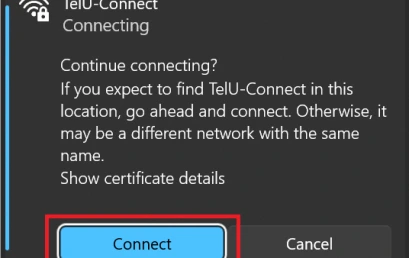
1. The question “Continue connecting?” appears after selecting OK
2. Choose Connect to connect to the Wifi network TelU-Connect
TelU-Connect for iOS
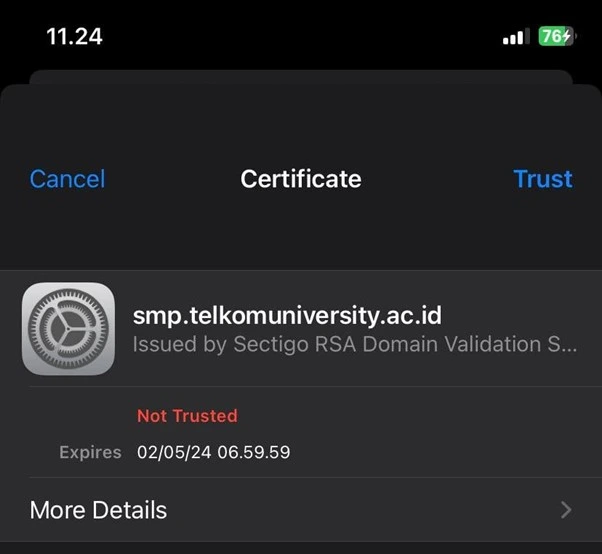
- Appear Pop-up Certificate after choosing Join
- Choose Trust to connect to the Wifi network TelU-Connect
TelU-Connect for macOS
Connect to the Wi-Fi network Telu Connect
2. Input SSO Account Username and Password, then Click “OK”
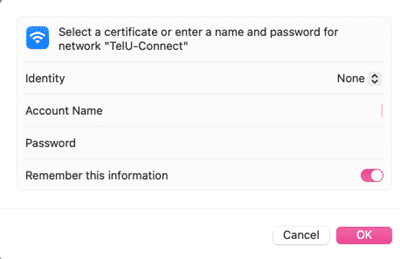
3. Certificate License Notification Click “continue”
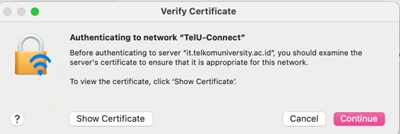
4. If successful, status “connected”

TelU-Connect for Android
1. Enter username Dan password Thank you for the column Identity Dan Password
2. If there is an option CA certificate, select Don't validate, then click Connect, or
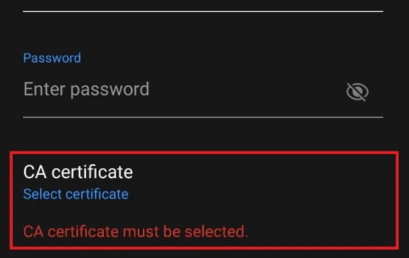
Important Note: If you change password SSO, please forget SSID TelU-Connect first
TelU-Connect or TUNE Issues: “No Internet, secured” or “Can’t connect to this network” on Windows Laptop Devices
Here are some things you can do to overcome TelU-Connect or TUNE connection issues with notifications like the one above:
Forget TelU-Connect or TUNE
1. Click the button Quick Settings located in the bottom right corner Taskbar Windows.
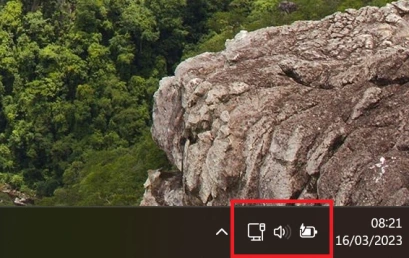
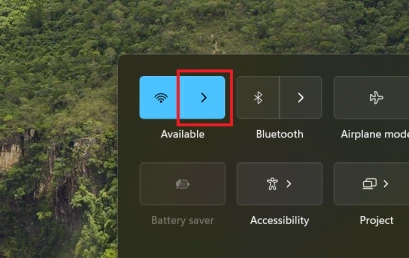
2. On the menu Quick Settings, search button Wi-Fi and click the arrow next to it.
3. Right-click on TelU-Connect, Telkom University, or Employee@TelkomUniversity and choose Forget.
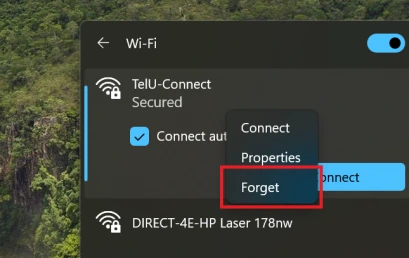
Finally, reconnect with TelU-Connect, Telkom University, or Employee@TelkomUniversity To see if the connection was successful, if not, please continue with the guide below.
Restart WiFi Driver
1. Right-click on the logo Windows and choose Device Manager
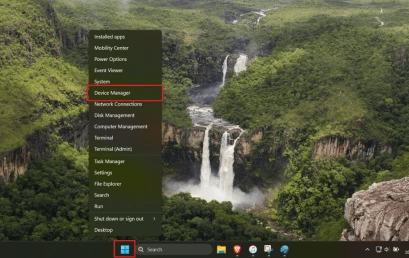
2. Double-click Network adapters through Device Manager
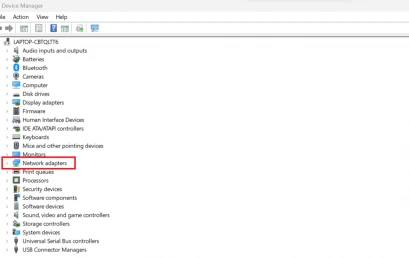
3. Select and right-click on WiFi driver the one with (name driver it may vary by device), then click Disable device and choose Yes on prompt emerging

4. Restart Computer, reopen application Device Manager, select and right-click WiFi driver which was previously disabled, then select Enable device
Finally, reconnect with TelU-Connect
If you are still unable to connect to TelU-Connect Wi-Fi, please report your issue via DTI Telkom University Jakarta Campus by attaching the identity and location of the TelU-Connect bottleneck.
Constraints for Failed Access to TelU-Connect WiFi (no internet, secured) on Android Phones
1. Do forget wifi TelU Connect
2. If you have already tried logging in again to the TelU Connect SSID. If it still doesn't work, continue to Checking DNS and VPN on a mobile device.
3. Open settings On the mobile device, select Connection (koneksi)
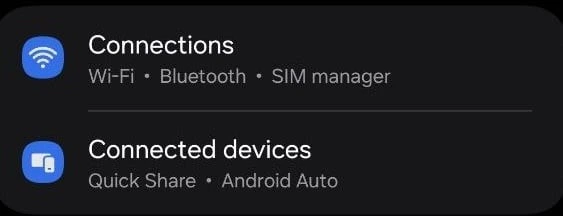
4. Select “More Connection
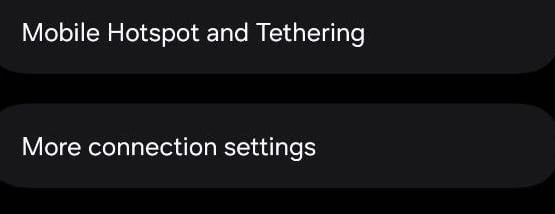
5. For VPN set to (NONE) and Private DNS set (automatic)
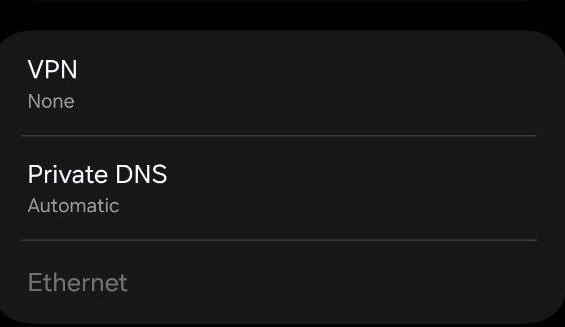
6. For private DNS, select “automatic”
TelU-Connect Challenges: “No Internet, secured” or “Can't connect to this network” on MacOS Devices
1. Please connect to the Wi-Fi network that cannot be accessed, then click “details”

2. Ensure the Tel-U Connect network IP status is clear, as shown in the image below:
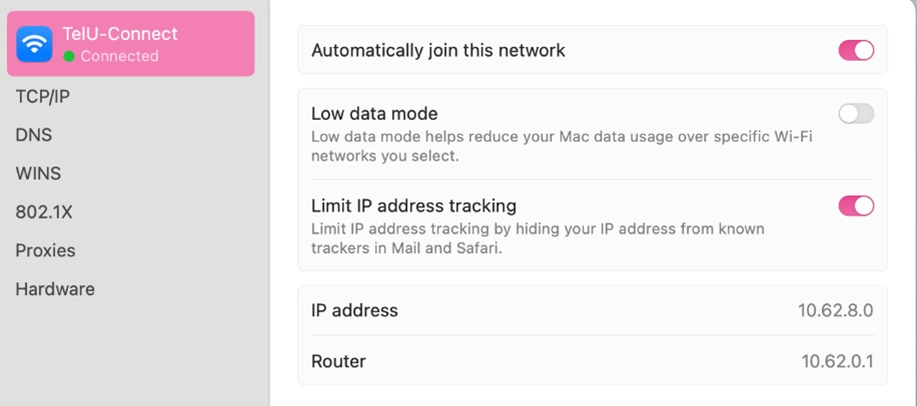
3. Check the DNS section to see if it's configured. “automatic” , if the settings “manual” please change to automatic (static DHCP)
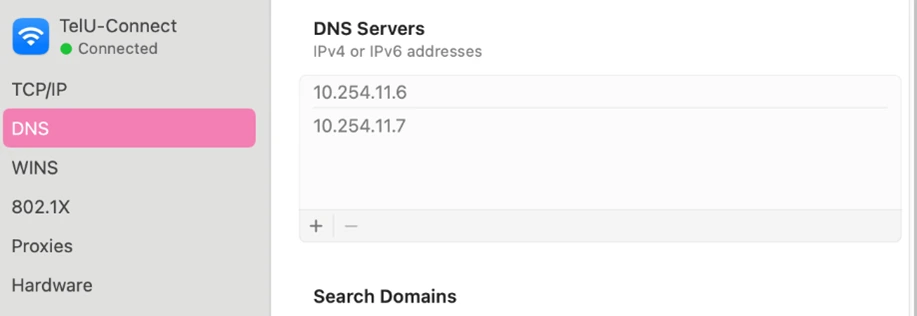
Tel-U Connect for INFINIX, REALME, AND GOOGLE PIXEL Devices
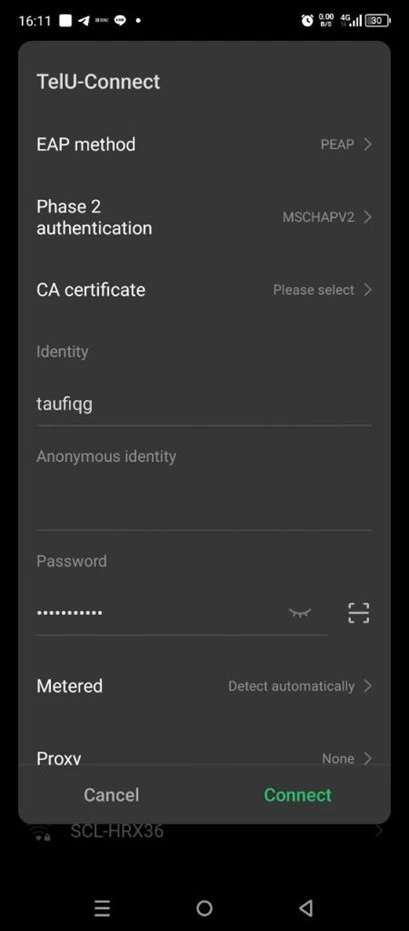
- For EAP method, fill in “PEAP”
- Phase 2 authentication “MSCHAPv2”
- Before proceeding to the CA Certificate, please download the following certificate file first: download here
- If you've already clicked the CA Certificate, select “Install from gallery”then select the file you previously downloaded
- diisi “username sso”
- Enter the password “password sso”
- Choose “Connect”
New Student Fails to Log In to Tel-U Connect Notification “Unable to connect to the Tel-U Connect network”
Ensure your NIK is registered on iGracias. Login Thank you select menu edit profile Search form “citizenship”. If the NIK is still blank, please contact BSLA. https://linktr.ee/bsla_univtelkom
If NIK has been registered by BSLA., Please log in to iGracias and change your iGracias password in the menu. Edit Profile > Account > Change Password. After changing your password, please try logging into iGracias with your new password. If successful, please try logging into Tel-U Connect again.
If there are any issues, please contact us at WhatsApp follows 0813-1980-0200 and email [email protected]
Hello Harmony, Excellence, Integrity
Information Technology Support