How to Share and Stop Access to Files or Folders in OneDrive
Share Files or Folders Using the “Copy Link” Feature”
1. Open OneDrive and sign in using your SSO account.
2. Find the file or folder you want to share, then click the options Share this item with others.
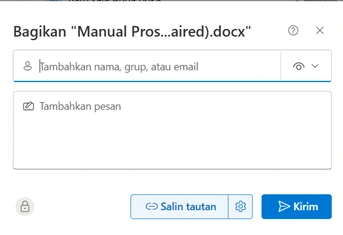
3. In the section Copy Link, click access settings like Anyone with the link can view To adjust access rights.
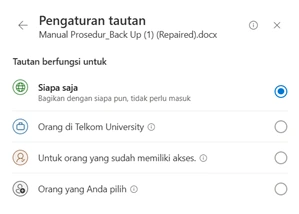
4. Adjust who can open the link:
- Who are theyEveryone who gets the link, whether directly from you or from others, including outside Telkom University, can access it.
- People at Telkom UniversityOnly Telkom University civitas members can open the link if they receive it.
- For those who already have accessUsed for people who already have access to that file or folder.
- The person you choseYou only grant access to manually designated individuals.
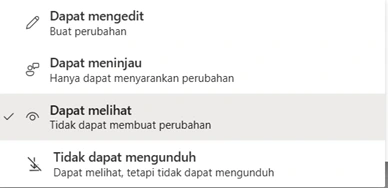
5. In the section Advanced settings, you can choose from the following options:
- Can editGrants the recipient full rights to modify the contents of a file or folder. For folders, the user can also perform actions such as copying, moving, renaming, deleting, or sharing them again.
- Must reviewAllowing the recipient to only provide suggestions or feedback on the document without being able to directly edit its content.
- Can seeAllow users to only view document content without being able to make any changes.
- Cannot downloadRecipients can read or review files, but are not allowed to download or save copies of them.
- Set expiration dateThe link is only valid until the specified date, after which it can no longer be accessed.
- Use a passwordThe file can only be opened by entering the password that you shared separately.
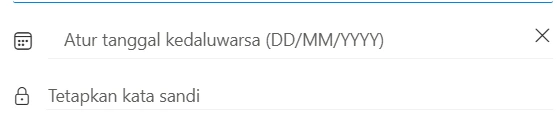
6. After all settings are complete, click Apply.
7. Click Copy Link to copy that link.

8. Paste and send the link to media such as email, messages, or other communication platforms.
Stop Access to Shared Files or Folders
1. Log in to OneDrive with your SSO account.
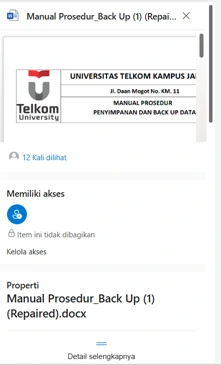
2. Select the file or folder you want to stop access to, then hover your cursor over the option Other actions, then click See details.
3. Click on Manage access.
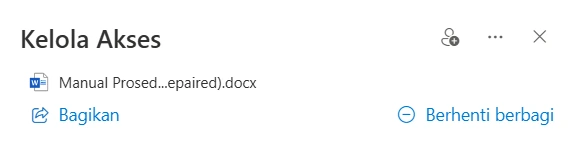
4. Press the button Stop sharing to revoke access for anyone who has received the link.
If there are any issues, please contact us at WhatsApp follows 0813-1980-0200 and email dtijkt@telkomuniversity.ac.id
Hello Harmony, Excellence, Integrity
Information Technology Support