How to Fix the “Managed by Your Organization” Message in Windows
If a notification appears on your Windows “Managed by Your Organization”, and you want to regain full control of the device, you can follow these steps:
🔄 Steps to Overcome
Open menu Windows, then select your profile — sign in Change Account Settings.
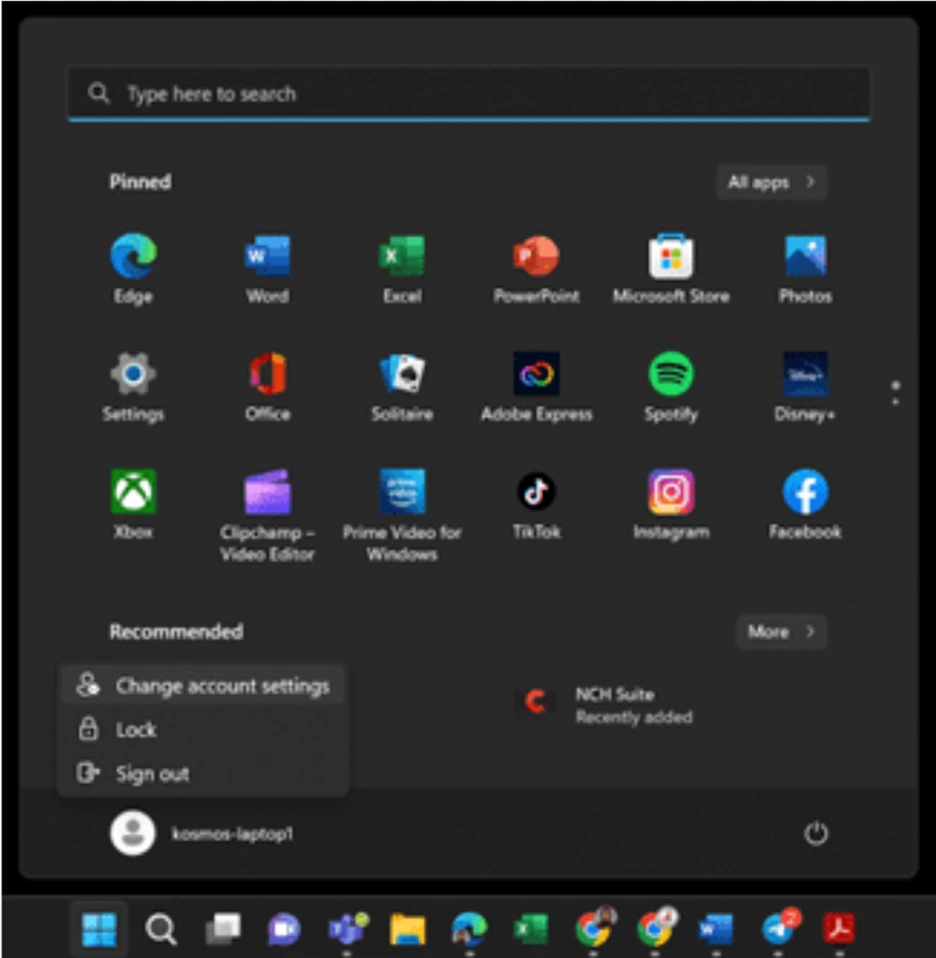
2. Enter the section Accounts, then scroll down and select Access work or school (Work or school access).
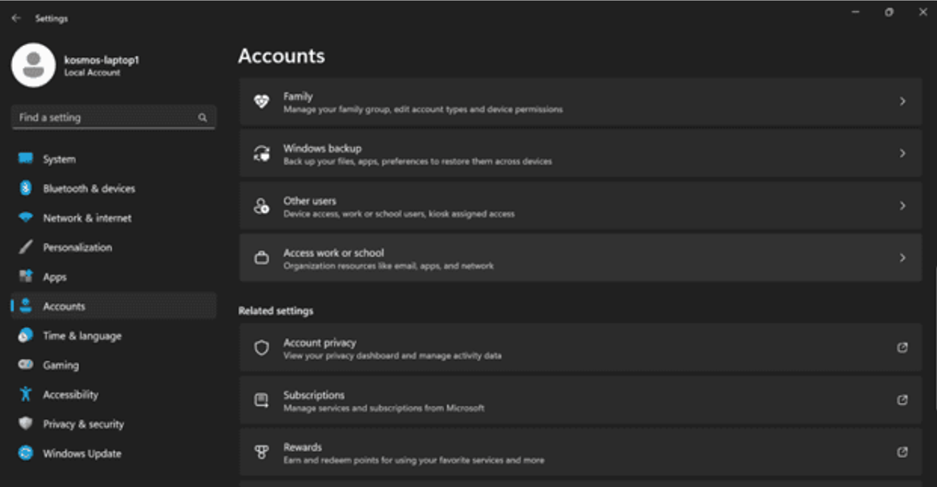
3. There, look for the connected work/school account, then select it. Disconnect Disconnect.
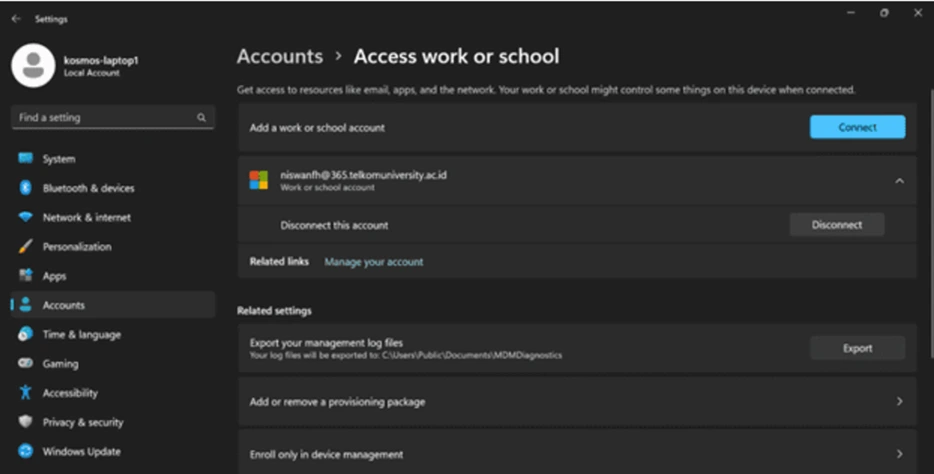
4. Confirm by clicking Yes to disconnect.
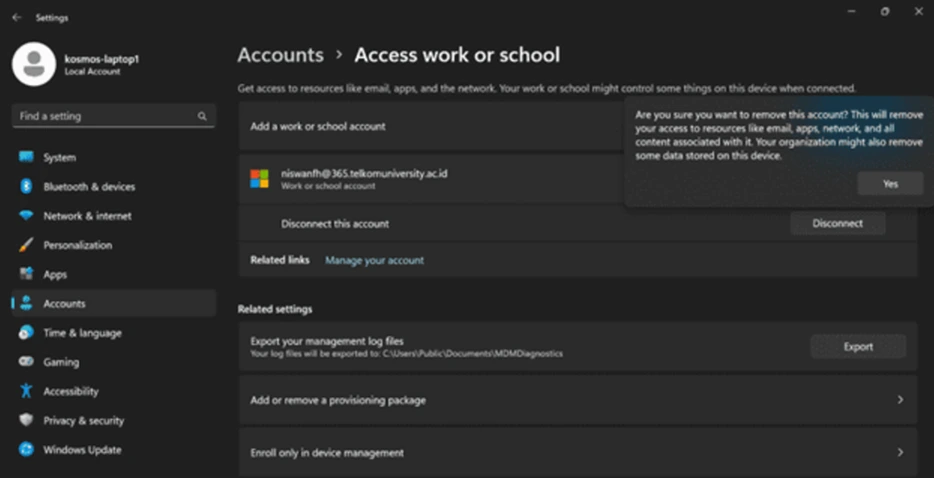
5. After that, log in again through applications such as Microsoft Teams or Microsoft OneDrive.
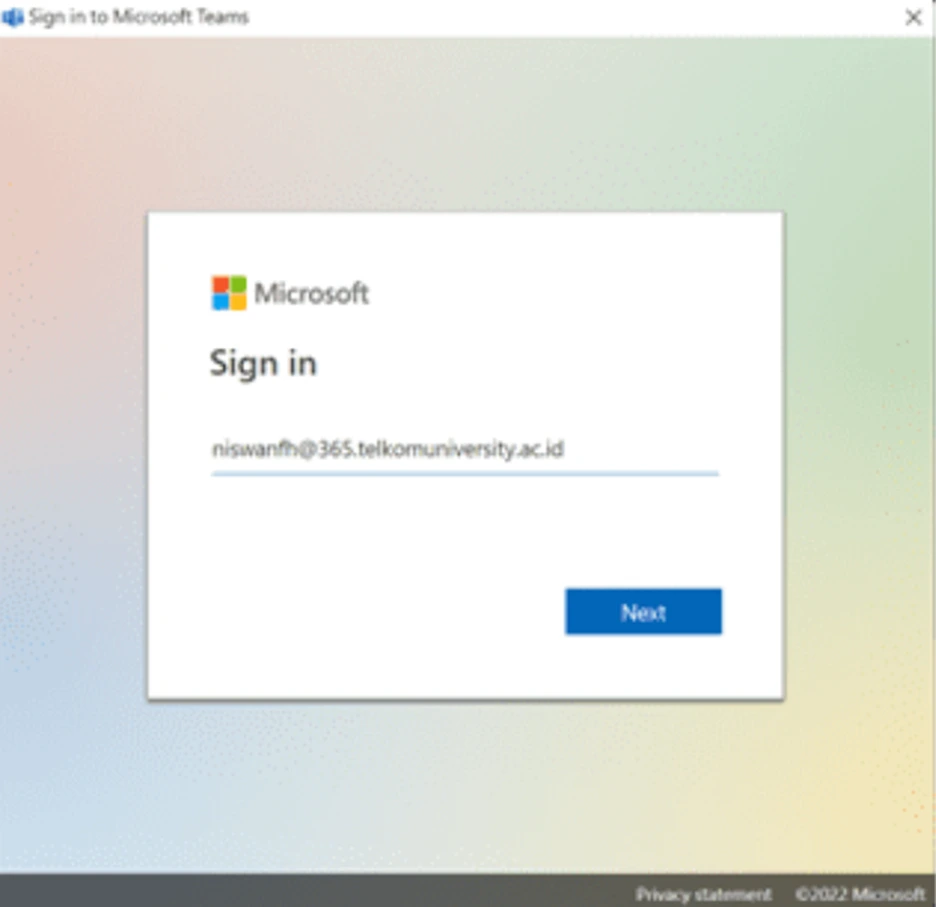
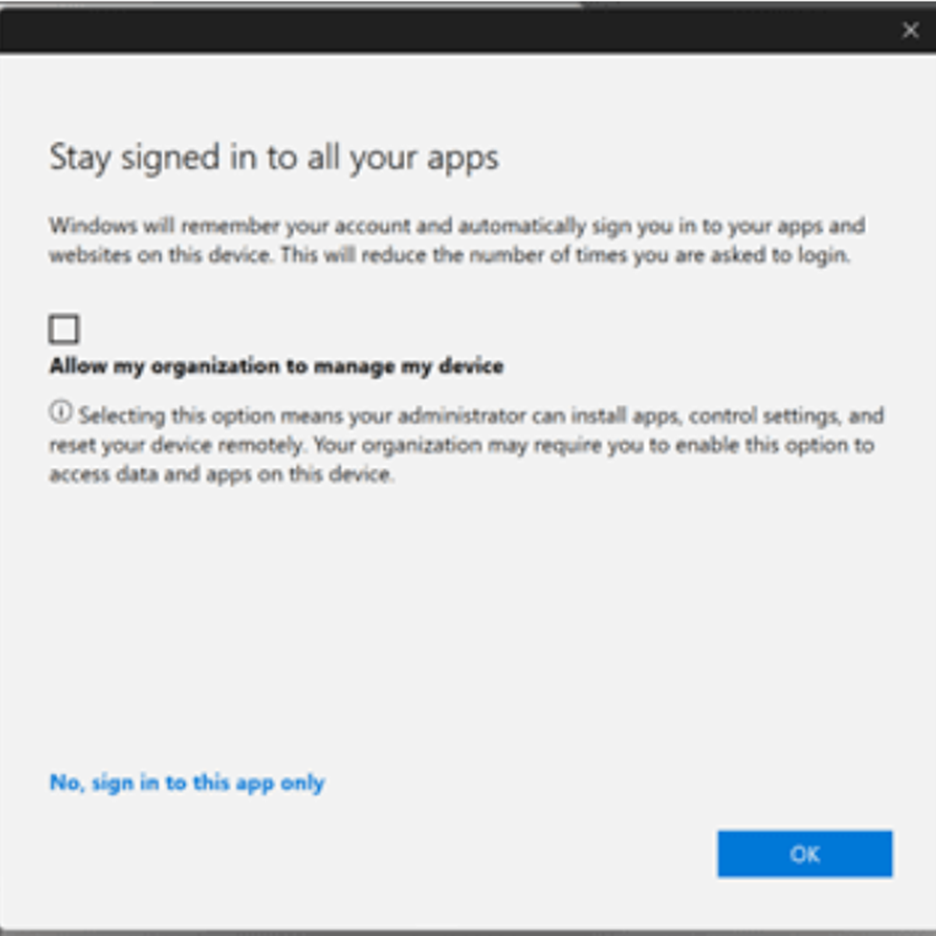
6. When logging in, if a choice appears, select “No, sign in to this app only” This is important so that Windows and your browser are not automatically managed by an organization.
⚠️ When the above methods don't work
If the problem persists after following the steps above, the last recommended option is to perform Reinstall operating system.
By following the guide above, you can regain full control over your Windows device settings without being locked by organizational policies.
If there are any issues, please contact us at WhatsApp follows 0813-1980-0200 and email dtijkt@telkomuniversity.ac.id
Hello Harmony, Excellence, Integrity
Information Technology Support