How to Fix Compressed Zipped Folder Errors When Downloading Files from OneDrive
OneDrive is a cloud storage service from Microsoft that allows users to easily store, access, and share files from various devices. However, when downloading files through the OneDrive website, users sometimes encounter an error message stating “Compressed Zipped Folder Errors”
Causes of Errors
This issue is generally caused by the following factors:
- Corrupt fileOne of the files in the downloaded folder might be unreadable or corrupted.
- File size too largeDownloading folders that are too large (over 5 GB) at once can trigger errors. It is recommended to download files in sizes of 1-5 GB per session.
- Access rights limitationsSome files or folders can only be accessed by the owner or people with specific permissions.
Alternative Ways to Backup OneDrive Files
If you often encounter problems downloading via the web, the best solution is to sync OneDrive directly to your device. Here are the steps:
1. Install the OneDrive application on your laptop or PC.
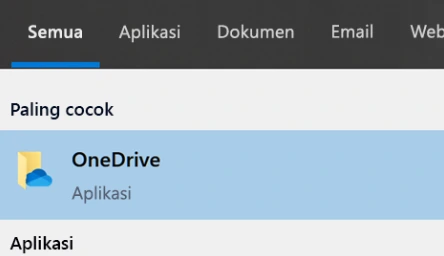
2. On Windows 10 or 11 operating systems, open the application OneDrive.
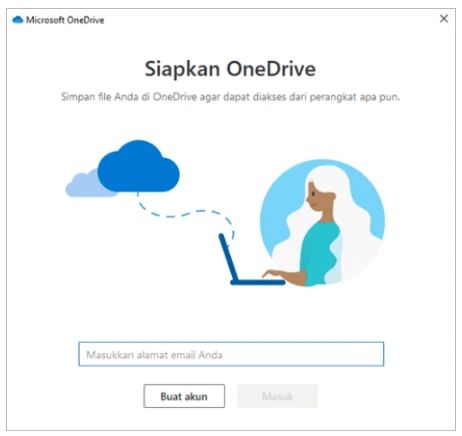
3. Enter your personal, work, or school Microsoft account, then click Enter.
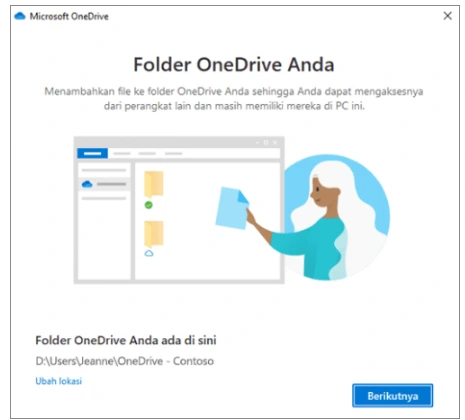
4. On the “This is your OneDrive folder” screen, select Next to use the default storage location, or click Change location if you want to specify another folder.
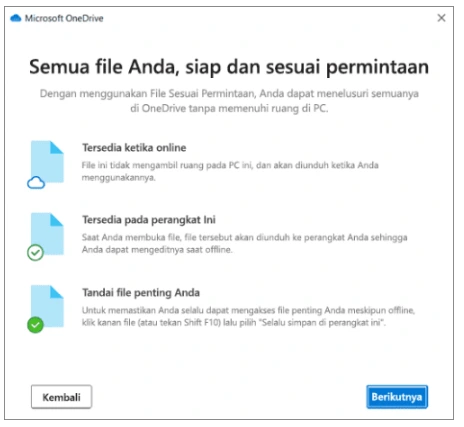
The system will display the file status, whether Online only, available locally, or always available. Click Next to continue.
Your OneDrive files can now be accessed and managed via File Manager on the device.
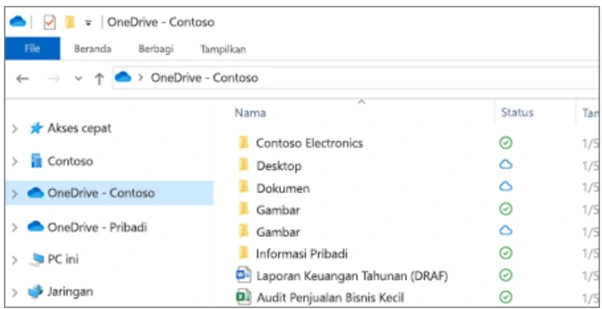
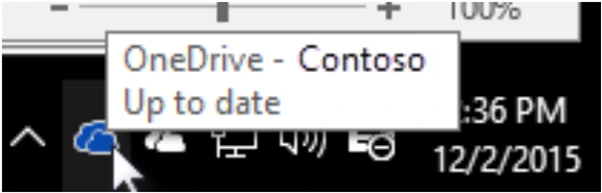
7. Icon white or blue clouds will appear in the notification area (bottom right corner), indicating that the synchronization process is in progress.
How to Move Files from OneDrive to Local Storage
After OneDrive syncs with a device:
- Open File Manager.
- Enter the folder OneDrive – [Organization Name] (example: OneDrive - Telkom University).
- Select the file or folder you want to move.
- Copy the file, then paste to a local directory (example: New Volume (D:)).
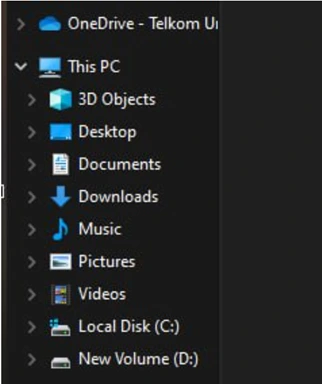
*Example image above “OneDrive – Telkom University” Copy paste to local storage “New Volume (D:)”
If there are any issues, please contact us at WhatsApp follows 0813-1980-0200 and email dtijkt@telkomuniversity.ac.id
Hello Harmony, Excellence, Integrity
Information Technology Support