User Guide and Troubleshooting for EDOM for Lecturers
Lecturer EDOM Submission Guide
1. Log in to the iGracias page using an account Single Sign-On (SSO) Yours.
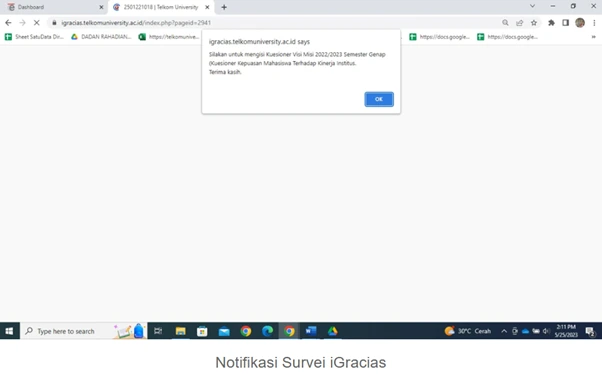
2. After logging in, you will see Survey access notification, then click OK to proceed to the survey page.
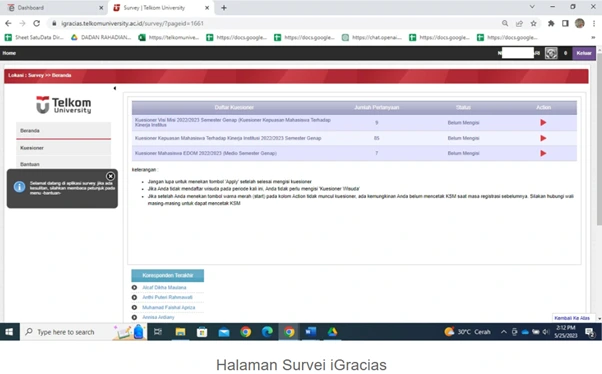
3. On the survey page, Select the red arrow icon in the column Action To start the questionnaire.
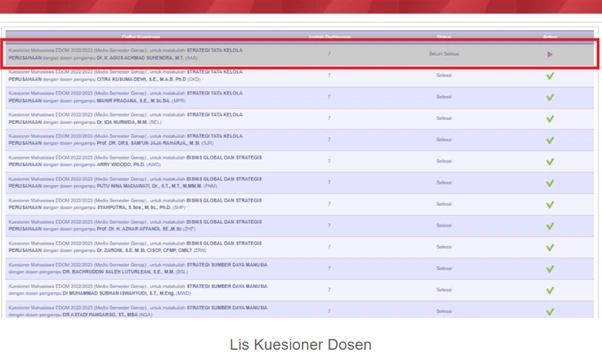
4. Next, it will display list of questionnaires, click the icon arrow in the column Action in the questionnaire section that is Not finished yet..
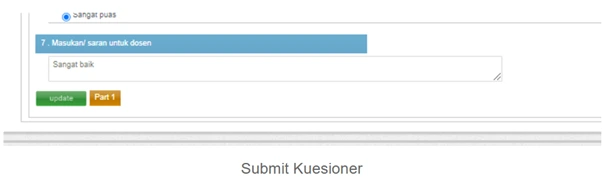
5. Complete all questionnaire questions by selecting the most appropriate answer based on your experience.
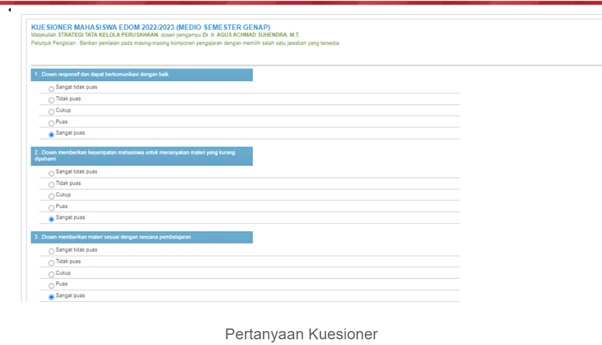
After all questions are filled, click the button Submit or Update for Complete and save the questionnaire results.
How to View EDOM Questionnaire Results per Lecturer?
The EDOM questionnaire results per lecturer can be viewed via Thank you using User Group: Head of Study Program or LAA.
The steps are, go to the menu Survey → EDOM Questionnaire Results → Lecturer Report.
How to View EDOM Results for Lecturers
To access the EDOM survey results for lecturers, please log in to Thank you using an account UG or User Group: Lecturer.
Then select the menu Survey → EDOM Questionnaire Results → Lecturer Report to see the results.
Why does the End-of-Term Survey sometimes appear for instructors not teaching my class?
This happened because the lecturer is registered as part of team teaching or course instructors—even if they are not directly teaching the entire class, the system will still display the names of the registered instructors.
If there are any issues, please contact us at WhatsApp follows 0813-1980-0200 and email dtijkt@telkomuniversity.ac.id
Hello Harmony, Excellence, Integrity
Information Technology Support